> ## Documentation Index
> Fetch the complete documentation index at: https://docs.extractor.live/llms.txt
> Use this file to discover all available pages before exploring further.
# Dashboard
> The Dashboard is the main landing page after login — it shows a portfolio-wide risk or compliance summary, latest alerts, and per-category score trends.
 ## Overview
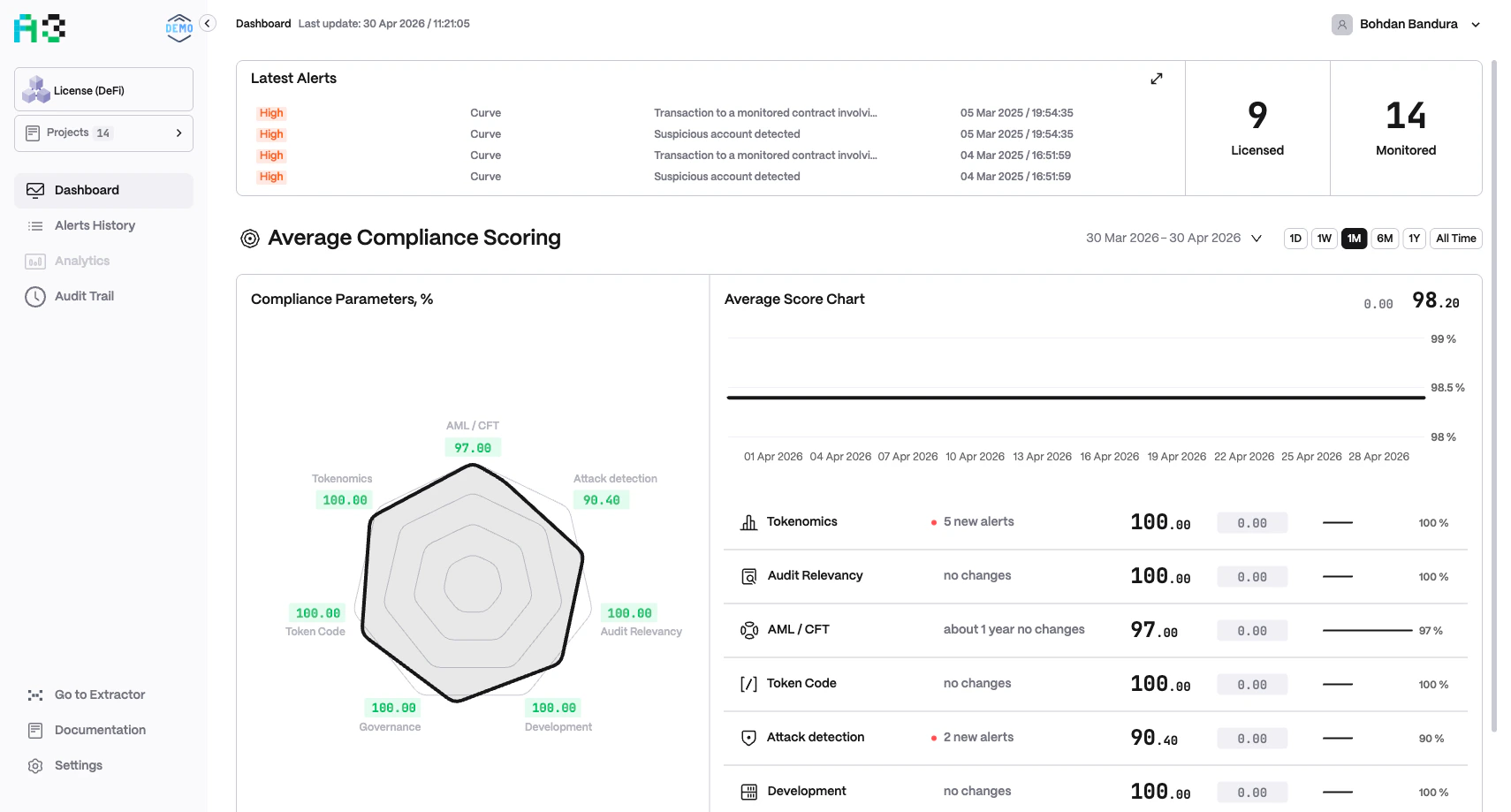
The Dashboard aggregates scoring data from all projects in the currently selected portfolio. It refreshes automatically; the last refresh time is shown in the header (`Last update: DD MMM YYYY / HH:MM:SS`).
The Dashboard's labels and categories are configured per organization. You may see **"Average Risk Scoring"** or **"Average Compliance Scoring"** depending on your setup. Category names and the two quick-stat labels also vary by organization.
## Quick Stats
Two summary numbers appear at the top-right of the Latest Alerts card:
| Stat | Description |
| ------------------------- | ------------------------------------------------------------- |
| **Active** / **Licensed** | Projects with active monitoring enabled (label varies by org) |
| **Monitored** | Total number of projects in the current portfolio |
## Latest Alerts
The Latest Alerts card lists the four most recent alerts across all projects. Each entry shows:
* **Severity badge** — `INFO`, `LOW`, `MEDIUM`, `HIGH`, or `CRITICAL`
* **Project name** — the originating project
* **Context value** — a human-readable metric snapshot (e.g. TVL values, transaction details, a price change)
* **Timestamp** — date and time the alert fired
Click the expand icon (↗) in the card header to open the full [Alerts History](/a3-documentation/alerts-history) view.
## Scoring Section
This section gives a portfolio-level snapshot across all configured categories. Use the time-range selector (`1D / 1W / 1M / 6M / 1Y / All Time`) to control the period shown.
### Risk / Compliance Parameters Chart
A radar chart (hexagonal or multi-axis polygon) plots the current score (0–100) for each configured category. Each axis represents one category. The shape of the polygon indicates overall health — a full outer polygon means all categories score 100.
Scores are color-coded:
* **Green** — healthy (near 100)
* **Orange / Yellow** — moderate risk
* **Red** — elevated risk (near 0)
The number of axes and their names depend entirely on your organization's configuration. Examples:
| Configuration type | Sample axes |
| --------------------- | ------------------------------------------------------------------------------------------- |
| Standard DeFi risk | AML/CFT · Financial Anomaly · Governance · Operational Security · Sentiment · Web3 Security |
| Regulatory compliance | AML/CFT · Tokenomics · Attack detection · Audit Relevancy · Development · Governance |
| Per-asset monitoring | BTC · ETH · SOL · USDT · stETH · LINK · Security · Compliance · Financial · Policy |
### Average Score Chart
A time-series line chart shows how the composite average score has changed over the selected period. The current score and its delta are shown in the top-right corner (e.g. `▼ 2.50 64.33`).
### Per-Category Breakdown
Below the charts, each category is listed as a row containing:
* **Icon and name**
* **Alert count** — e.g. `452 new alerts` or `no changes`
* **Current score** — e.g. `42.00`
* **Score delta** — change badge (red = score dropped)
* **Trend sparkline** — mini chart showing score history
* **Percentage bar** — score on a 0–100% scale
## Overview
The Dashboard aggregates scoring data from all projects in the currently selected portfolio. It refreshes automatically; the last refresh time is shown in the header (`Last update: DD MMM YYYY / HH:MM:SS`).
The Dashboard's labels and categories are configured per organization. You may see **"Average Risk Scoring"** or **"Average Compliance Scoring"** depending on your setup. Category names and the two quick-stat labels also vary by organization.
## Quick Stats
Two summary numbers appear at the top-right of the Latest Alerts card:
| Stat | Description |
| ------------------------- | ------------------------------------------------------------- |
| **Active** / **Licensed** | Projects with active monitoring enabled (label varies by org) |
| **Monitored** | Total number of projects in the current portfolio |
## Latest Alerts
The Latest Alerts card lists the four most recent alerts across all projects. Each entry shows:
* **Severity badge** — `INFO`, `LOW`, `MEDIUM`, `HIGH`, or `CRITICAL`
* **Project name** — the originating project
* **Context value** — a human-readable metric snapshot (e.g. TVL values, transaction details, a price change)
* **Timestamp** — date and time the alert fired
Click the expand icon (↗) in the card header to open the full [Alerts History](/a3-documentation/alerts-history) view.
## Scoring Section
This section gives a portfolio-level snapshot across all configured categories. Use the time-range selector (`1D / 1W / 1M / 6M / 1Y / All Time`) to control the period shown.
### Risk / Compliance Parameters Chart
A radar chart (hexagonal or multi-axis polygon) plots the current score (0–100) for each configured category. Each axis represents one category. The shape of the polygon indicates overall health — a full outer polygon means all categories score 100.
Scores are color-coded:
* **Green** — healthy (near 100)
* **Orange / Yellow** — moderate risk
* **Red** — elevated risk (near 0)
The number of axes and their names depend entirely on your organization's configuration. Examples:
| Configuration type | Sample axes |
| --------------------- | ------------------------------------------------------------------------------------------- |
| Standard DeFi risk | AML/CFT · Financial Anomaly · Governance · Operational Security · Sentiment · Web3 Security |
| Regulatory compliance | AML/CFT · Tokenomics · Attack detection · Audit Relevancy · Development · Governance |
| Per-asset monitoring | BTC · ETH · SOL · USDT · stETH · LINK · Security · Compliance · Financial · Policy |
### Average Score Chart
A time-series line chart shows how the composite average score has changed over the selected period. The current score and its delta are shown in the top-right corner (e.g. `▼ 2.50 64.33`).
### Per-Category Breakdown
Below the charts, each category is listed as a row containing:
* **Icon and name**
* **Alert count** — e.g. `452 new alerts` or `no changes`
* **Current score** — e.g. `42.00`
* **Score delta** — change badge (red = score dropped)
* **Trend sparkline** — mini chart showing score history
* **Percentage bar** — score on a 0–100% scale