> ## Documentation Index
> Fetch the complete documentation index at: https://docs.extractor.live/llms.txt
> Use this file to discover all available pages before exploring further.
# Portfolios & Projects
> The top-level grouping organizes related projects for collective monitoring. Each project represents a monitored protocol, asset, exchange, or entity.
 ## Top-Level Groups
The left sidebar shows your organization's top-level groups — the label and structure depend on your A3 configuration:
| What you might see | Typical use case |
| ------------------ | -------------------------------------- |
| **Portfolios** | DeFi protocol monitoring |
| **Policies** | Regulatory policy and asset monitoring |
| **Licenses** | License-based compliance frameworks |
Click the **`>`** button next to the group label to open the picker, which lists all groups in your organization with their project counts.
Selecting a group scopes the Dashboard and all other views to that group's data.
## Projects
Within a group, click **`>`** next to **Projects** to open the project list. Each row shows:
| Column | Description |
| ---------- | ------------------------------------------------------------------------------------------ |
| **Name** | Project name with logo |
| **Status** | `Active` (monitoring running) or `Pending` (setup incomplete) |
| **Alerts** | Alert counts by severity: critical (red), warning (orange), info (blue), plus unread count |
| **Score** | Current composite score (0–100) with a color-coded dot |
Projects can represent DeFi protocols (Aave, AsterDEX), specific assets (Bitcoin, Ethereum, Tether), centralized exchanges (Binance, Coinbase, ByBit), or any other monitored entity.
## Project Detail
Project detail tabs are configurable per organization. The tabs shown below are the default set — your A3 workspace may have a different selection, different tab names, or additional custom tabs depending on what your organization has enabled.
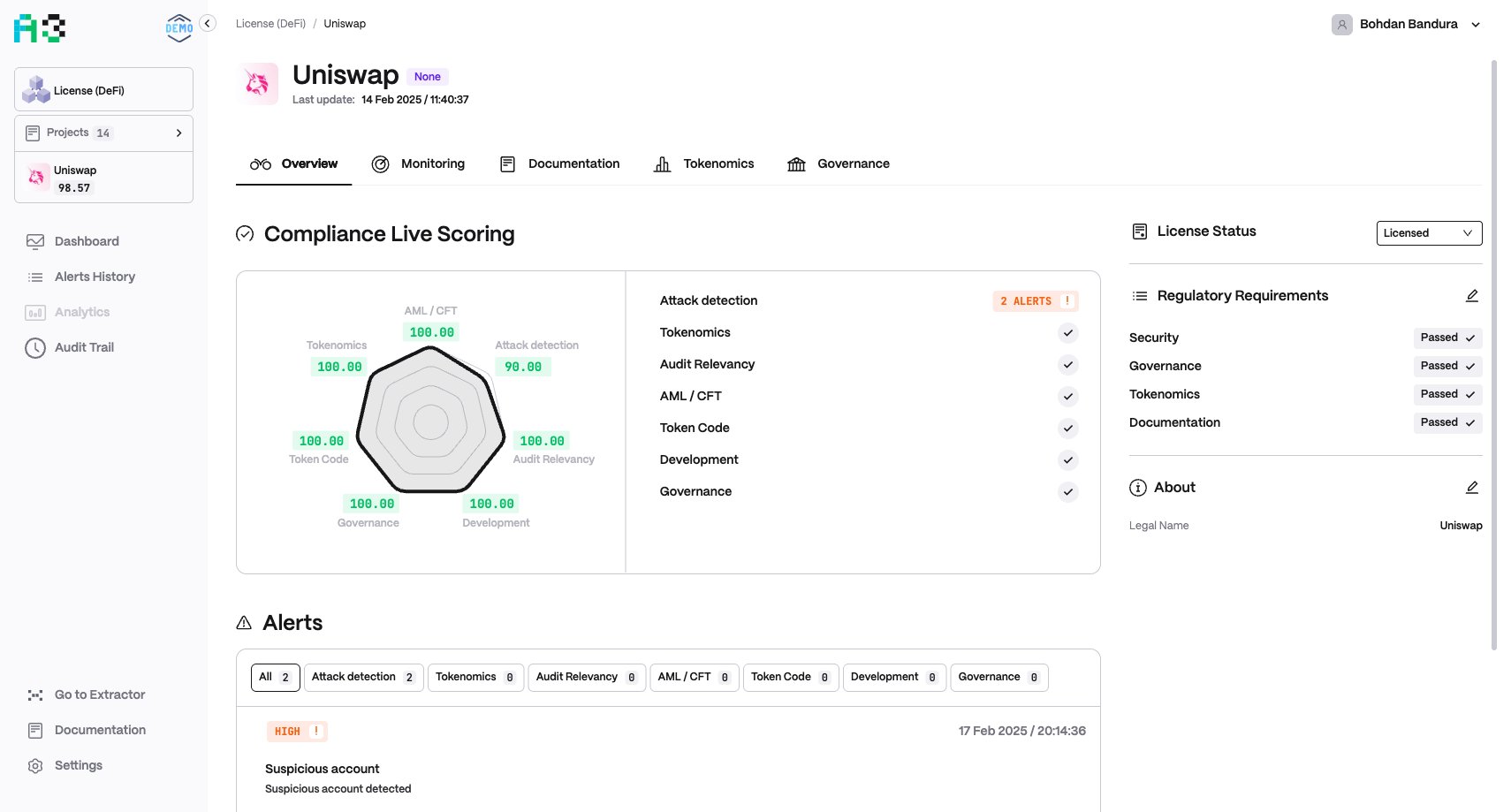
The Overview tab shows a project-level scoring snapshot and compliance status.
**Risk Live Scoring / Compliance Live Scoring**
A radar chart plots current scores across all configured categories for this project, alongside a list of categories showing alert counts or a pass (✓) indicator. The section is labelled **"Risk Live Scoring"** in risk-focused organizations and **"Compliance Live Scoring"** in compliance-focused ones.
The number of axes on the chart matches the categories enabled for the organization. Organizations with per-asset monitoring may have many axes (e.g. one per tracked asset: ETH, BTC, SOL, LINK, USDT…).
**Alerts**
The Alerts section shows a tabbed feed of alerts for this project:
* **All** — every alert across all categories, with the total count shown on the tab
* **One tab per category** — alerts filtered to that specific category (e.g. Financial Anomaly, Sentiment, Web3 Security), each showing its own count
Selecting a category tab filters the list to only alerts belonging to that category. The categories shown match those configured for your organization.
The named compliance framework variant appears alongside the status dropdown and shows individual requirement items — for example:
| Item | Possible statuses |
| ------------- | ------------------------------------------------------ |
| Custom | Passed ✓, Failed ✗, Pending, Custom (or any free text) |
| Security | Passed ✓, Failed ✗, Pending, Custom |
| Governance | Passed ✓, Failed ✗, Pending, Custom |
| Tokenomics | Passed ✓, Failed ✗, Pending, Custom |
| Documentation | Passed ✓, Failed ✗, Pending, Custom (or free text) |
The checklist items themselves are configurable per organization — your A3 workspace may have a different set of requirement names under the compliance framework panel.
**About**
A short description of the project and a link to its official website. Editable via the pencil icon. Some organizations also display a **Legal Name** field (the registered legal entity name of the project).
## Top-Level Groups
The left sidebar shows your organization's top-level groups — the label and structure depend on your A3 configuration:
| What you might see | Typical use case |
| ------------------ | -------------------------------------- |
| **Portfolios** | DeFi protocol monitoring |
| **Policies** | Regulatory policy and asset monitoring |
| **Licenses** | License-based compliance frameworks |
Click the **`>`** button next to the group label to open the picker, which lists all groups in your organization with their project counts.
Selecting a group scopes the Dashboard and all other views to that group's data.
## Projects
Within a group, click **`>`** next to **Projects** to open the project list. Each row shows:
| Column | Description |
| ---------- | ------------------------------------------------------------------------------------------ |
| **Name** | Project name with logo |
| **Status** | `Active` (monitoring running) or `Pending` (setup incomplete) |
| **Alerts** | Alert counts by severity: critical (red), warning (orange), info (blue), plus unread count |
| **Score** | Current composite score (0–100) with a color-coded dot |
Projects can represent DeFi protocols (Aave, AsterDEX), specific assets (Bitcoin, Ethereum, Tether), centralized exchanges (Binance, Coinbase, ByBit), or any other monitored entity.
## Project Detail
Project detail tabs are configurable per organization. The tabs shown below are the default set — your A3 workspace may have a different selection, different tab names, or additional custom tabs depending on what your organization has enabled.
The Overview tab shows a project-level scoring snapshot and compliance status.
**Risk Live Scoring / Compliance Live Scoring**
A radar chart plots current scores across all configured categories for this project, alongside a list of categories showing alert counts or a pass (✓) indicator. The section is labelled **"Risk Live Scoring"** in risk-focused organizations and **"Compliance Live Scoring"** in compliance-focused ones.
The number of axes on the chart matches the categories enabled for the organization. Organizations with per-asset monitoring may have many axes (e.g. one per tracked asset: ETH, BTC, SOL, LINK, USDT…).
**Alerts**
The Alerts section shows a tabbed feed of alerts for this project:
* **All** — every alert across all categories, with the total count shown on the tab
* **One tab per category** — alerts filtered to that specific category (e.g. Financial Anomaly, Sentiment, Web3 Security), each showing its own count
Selecting a category tab filters the list to only alerts belonging to that category. The categories shown match those configured for your organization.
The named compliance framework variant appears alongside the status dropdown and shows individual requirement items — for example:
| Item | Possible statuses |
| ------------- | ------------------------------------------------------ |
| Custom | Passed ✓, Failed ✗, Pending, Custom (or any free text) |
| Security | Passed ✓, Failed ✗, Pending, Custom |
| Governance | Passed ✓, Failed ✗, Pending, Custom |
| Tokenomics | Passed ✓, Failed ✗, Pending, Custom |
| Documentation | Passed ✓, Failed ✗, Pending, Custom (or free text) |
The checklist items themselves are configurable per organization — your A3 workspace may have a different set of requirement names under the compliance framework panel.
**About**
A short description of the project and a link to its official website. Editable via the pencil icon. Some organizations also display a **Legal Name** field (the registered legal entity name of the project).
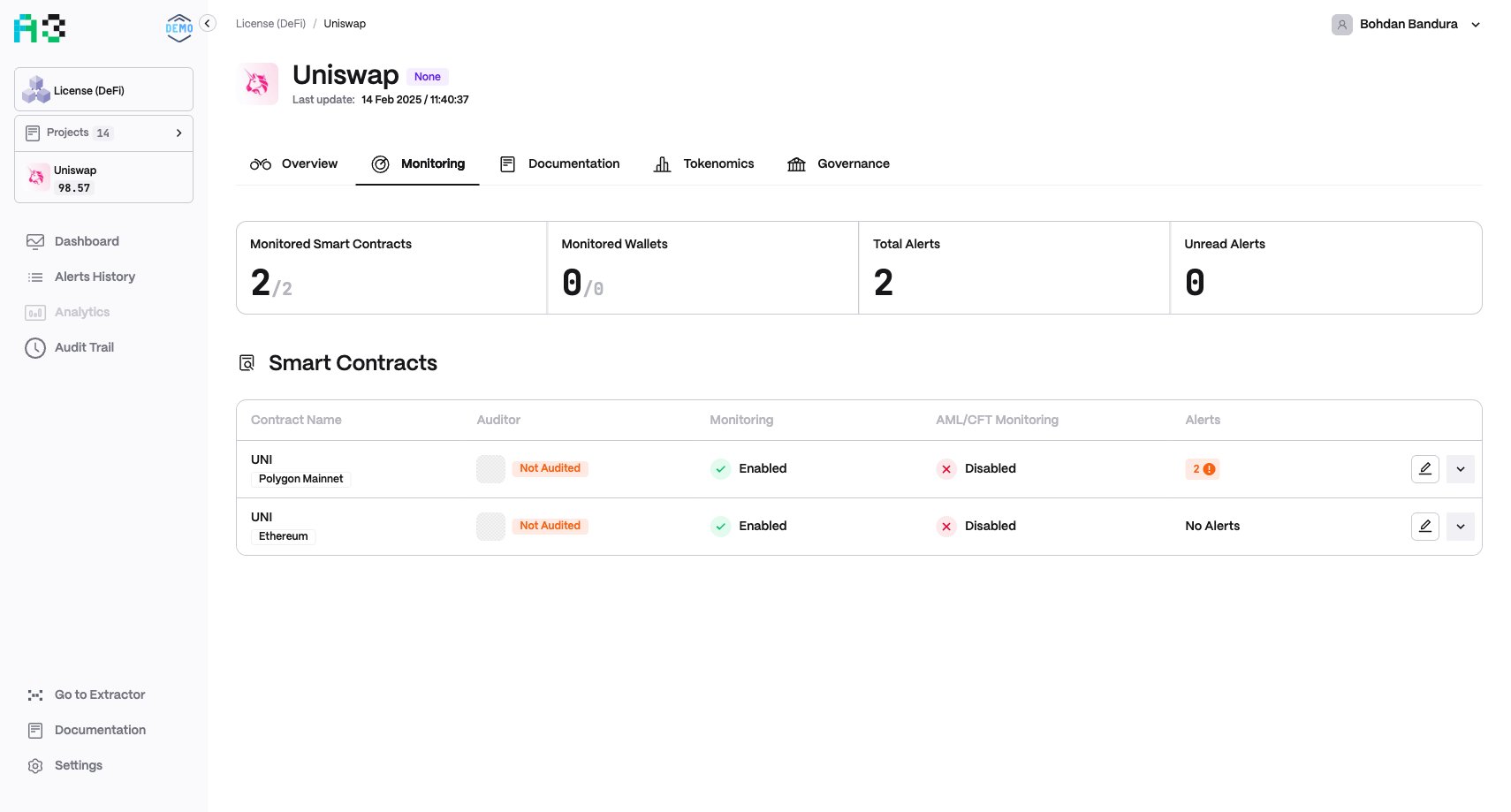 The Monitoring tab shows the full picture of what is being watched for this project.
**Summary stats:**
| Stat | Description |
| ------------------------- | ----------------------------------------------- |
| Monitored Smart Contracts | Active / total smart contracts under monitoring |
| Monitored Wallets | Active / total wallets under monitoring |
| Total Alerts | Cumulative alert count |
| Unread Alerts | Alerts not yet reviewed |
**Smart Contracts table** lists every tracked contract with:
* **Contract Name** and network (e.g. BSC, Ethereum, Mainnet, or N/A)
* **Auditor** — audit firm name and relevancy date, or `Not Audited`
* **Monitoring** — enabled / disabled
* **AML/CFT Monitoring** — enabled / disabled
* **Alerts** — per-severity alert counts for that contract
Each row has two action controls on the right:
* **✏ Edit** — opens a modal to manage the contract's audit records (auditor name, audit status, audited date, expiry date) and tokenomics allocation addresses. Audit entries can be added, edited, or deleted individually.
* **˅ Expand** — expands the row inline to reveal the full on-chain **Contract Address** (copyable, with a link to the block explorer) and a feed of the latest alerts fired for that specific contract. Click ˄ to collapse.
A free-form documentation area for the project. Click **+ Create documentation** to add notes, runbooks, or compliance evidence. Content is stored per-project within your organization.
The Tokenomics tab tracks token supply and distribution health:
* **Supply Issuance Monitoring** — tracks minting and burning events
* **Allocations** — breakdown of token allocation categories (vesting, treasury, team, etc.)
* **Alerts** — tokenomics-specific alerts
When supply issuance monitoring is not configured, this section shows "Monitoring is disabled."
The Governance tab stores governance-related documentation. Click **+ Create documentation** to attach governance policies, voting records, or DAO structure notes.
The Monitoring tab shows the full picture of what is being watched for this project.
**Summary stats:**
| Stat | Description |
| ------------------------- | ----------------------------------------------- |
| Monitored Smart Contracts | Active / total smart contracts under monitoring |
| Monitored Wallets | Active / total wallets under monitoring |
| Total Alerts | Cumulative alert count |
| Unread Alerts | Alerts not yet reviewed |
**Smart Contracts table** lists every tracked contract with:
* **Contract Name** and network (e.g. BSC, Ethereum, Mainnet, or N/A)
* **Auditor** — audit firm name and relevancy date, or `Not Audited`
* **Monitoring** — enabled / disabled
* **AML/CFT Monitoring** — enabled / disabled
* **Alerts** — per-severity alert counts for that contract
Each row has two action controls on the right:
* **✏ Edit** — opens a modal to manage the contract's audit records (auditor name, audit status, audited date, expiry date) and tokenomics allocation addresses. Audit entries can be added, edited, or deleted individually.
* **˅ Expand** — expands the row inline to reveal the full on-chain **Contract Address** (copyable, with a link to the block explorer) and a feed of the latest alerts fired for that specific contract. Click ˄ to collapse.
A free-form documentation area for the project. Click **+ Create documentation** to add notes, runbooks, or compliance evidence. Content is stored per-project within your organization.
The Tokenomics tab tracks token supply and distribution health:
* **Supply Issuance Monitoring** — tracks minting and burning events
* **Allocations** — breakdown of token allocation categories (vesting, treasury, team, etc.)
* **Alerts** — tokenomics-specific alerts
When supply issuance monitoring is not configured, this section shows "Monitoring is disabled."
The Governance tab stores governance-related documentation. Click **+ Create documentation** to attach governance policies, voting records, or DAO structure notes.