> ## Documentation Index
> Fetch the complete documentation index at: https://docs.extractor.live/llms.txt
> Use this file to discover all available pages before exploring further.
# Settings
> Manage your Hacken Extractor profile, enable two-factor authentication, and configure organization team members and permissions in the Settings page.
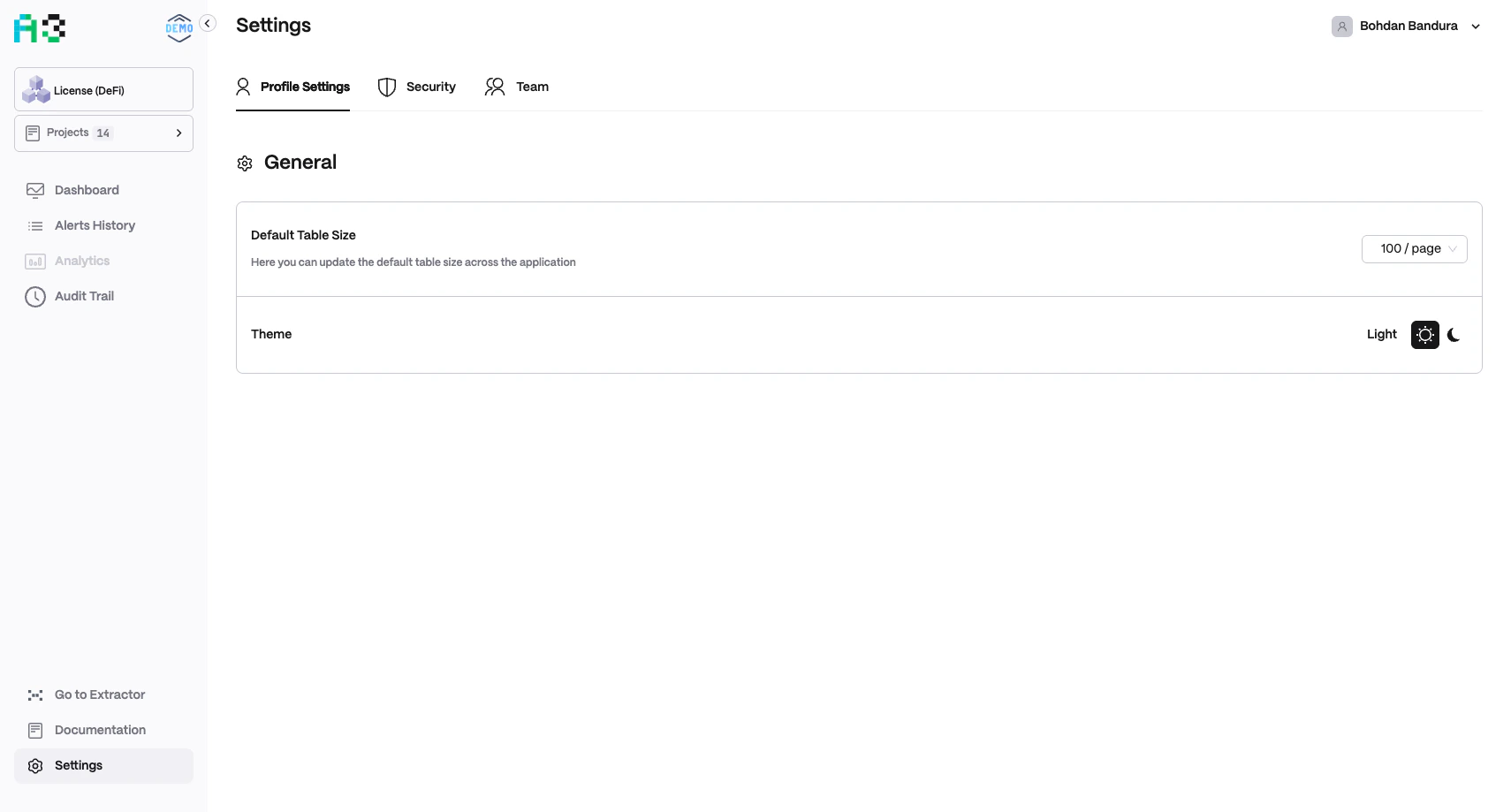 Navigate to **Settings** at the bottom of the left sidebar. Three tabs are available: Profile Settings, Security, and Team.
## Profile Settings
The **Profile Settings** tab contains general UI preferences.
| Setting | Description |
| ---------------------- | ------------------------------------------------------------------------- |
| **Default Table Size** | Number of rows shown per page across all tables. Default is `100 / page`. |
| **Theme** | Toggle between **Light** and **Dark** mode. Takes effect immediately. |
## Security
The **Security** tab manages two-factor authentication (2FA) devices.
* The table lists registered 2FA devices with **Device** and **Enabled** columns.
* If no devices are registered, the table shows "No 2FA devices."
* Click **Add New 2FA Device** to register an authenticator app or hardware key.
Enabling 2FA is strongly recommended for all users with admin or editor roles, as they can modify monitoring configuration, resolve alerts, and manage team access.
## Team
The **Team** tab lets organization admins manage workspace access.
### Member List
| Column | Description |
| ---------- | ------------------------------------------------------------------------------------- |
| **Name** | Display name and email address |
| **Status** | `ADMIN` badge for administrators |
| **Role** | Assigned role(s), e.g. `extractor-admin`. Click `[+N]` to see all roles for a member. |
The three-dot menu (⋮) on each row lets admins edit or remove a member.
### Inviting a Team Member
Click **Invite Team Member**, enter the invitee's email and select a role, then send the invitation. The invitee receives an email with a sign-up link.
### Roles
Roles control what actions a user can perform in A3 — for example, whether they can modify monitoring settings or only view dashboards and alerts. Contact your Hacken account manager for the full role permission matrix for your organization.
Navigate to **Settings** at the bottom of the left sidebar. Three tabs are available: Profile Settings, Security, and Team.
## Profile Settings
The **Profile Settings** tab contains general UI preferences.
| Setting | Description |
| ---------------------- | ------------------------------------------------------------------------- |
| **Default Table Size** | Number of rows shown per page across all tables. Default is `100 / page`. |
| **Theme** | Toggle between **Light** and **Dark** mode. Takes effect immediately. |
## Security
The **Security** tab manages two-factor authentication (2FA) devices.
* The table lists registered 2FA devices with **Device** and **Enabled** columns.
* If no devices are registered, the table shows "No 2FA devices."
* Click **Add New 2FA Device** to register an authenticator app or hardware key.
Enabling 2FA is strongly recommended for all users with admin or editor roles, as they can modify monitoring configuration, resolve alerts, and manage team access.
## Team
The **Team** tab lets organization admins manage workspace access.
### Member List
| Column | Description |
| ---------- | ------------------------------------------------------------------------------------- |
| **Name** | Display name and email address |
| **Status** | `ADMIN` badge for administrators |
| **Role** | Assigned role(s), e.g. `extractor-admin`. Click `[+N]` to see all roles for a member. |
The three-dot menu (⋮) on each row lets admins edit or remove a member.
### Inviting a Team Member
Click **Invite Team Member**, enter the invitee's email and select a role, then send the invitation. The invitee receives an email with a sign-up link.
### Roles
Roles control what actions a user can perform in A3 — for example, whether they can modify monitoring settings or only view dashboards and alerts. Contact your Hacken account manager for the full role permission matrix for your organization.